Lab Objective
In this lab we will configure the main types of NAT used in real networks:
- Static NAT – A one-to-one mapping between a private inside address and a public address.
- Dynamic NAT – Using a pool of public addresses that internal hosts can be translated to.
- NAT Overload (PAT) – Allowing multiple internal devices to share a single public IP using port translation.
Once NAT is configured, we will examine the NAT translation table to see how the router tracks active translations and how Inside Local and Inside Global addresses appear in real output.
We will also look at NAT timeout behavior to see how translations age out when sessions become inactive.
Finally, we will use common verification commands to confirm that NAT is operating correctly and to see what useful information the router provides when troubleshooting.
Topology & Base Configuration
All routers have a loopback address applied that matches their router name.
Example:
R1 = 1.1.1.1/32
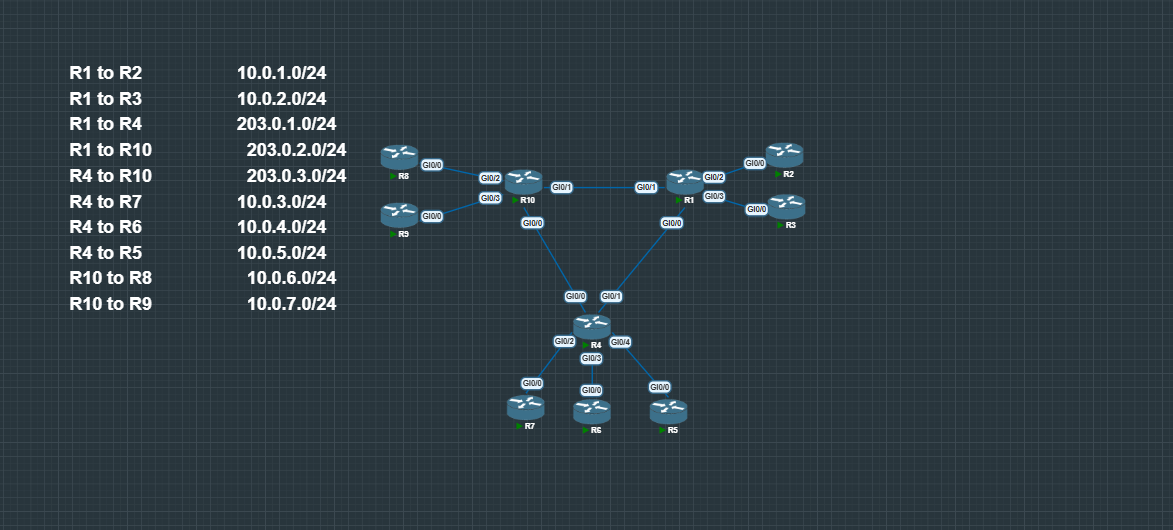
Private interface IPs follow a consistent pattern: x.x.x.(Router Number).
For example, on subnet 10.0.0.0/24 between R2 and R8:
- R2 → 10.0.0.2/24
- R8 → 10.0.0.8/24
Public-facing interfaces use the pattern 203.0.0.(Router Number).
All subnets and routing (OSPF & eBGP) have been pre-configured for this lab.
To prevent private address space from being redistributed into BGP, a route-map is used during redistribution.
conf t
!
access-list 1 permit 10.0.0.0 0.255.255.255
access-list 1 permit 172.16.0.0 0.15.255.255
access-list 1 permit 192.168.0.0 0.0.255.255

route-map no-internal deny 10
 match ip address 1
route-map no-internal permit 20
!

router bgp 10
 bgp log-neighbor-changes
 redistribute connected route-map no-internal
Configuring Static NAT
The first step in this lab is configuring Static NAT on R1. Static NAT creates a permanent one-to-one mapping between an internal private address and a public address.
In this example, R1 will translate the inside host 10.0.1.2 (R2) to the public address 203.0.1.1.
First, define which interfaces are inside and outside for NAT.
enable
conf t

int range g0/0 - 1
ip nat outside

int range g0/2 - 3
ip nat inside
Next, create the static NAT mapping:
ip nat inside source static 10.0.1.2 203.0.1.1
This creates the following translation:
Inside Local → Inside Global
10.0.1.2 → 203.0.1.1
Any traffic coming from the inside host 10.0.1.2 will have its source address translated to 203.0.1.1 when it exits R1.
To generate traffic and trigger the translation, a ping was sent from R2.
(Ping from R2 before and after translation)
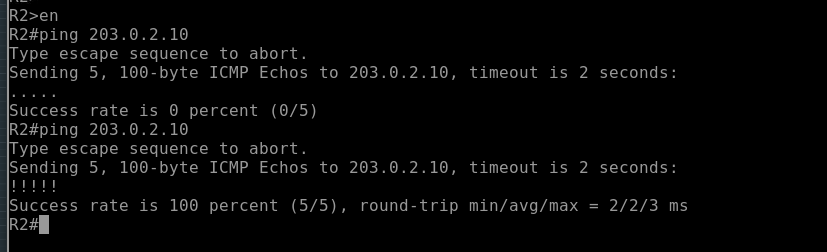
If you try the same command on R3 which does not have a static nat rule in place it will fail.

Once traffic flows through R1, the NAT table can be inspected using:
show ip nat translations
(NAT Translation Table)

The output shows the static mapping between the Inside Local and Inside Global addresses,
Configuring Dynamic NAT
Next we will configure Dynamic NAT on R4. Unlike Static NAT, which creates a permanent mapping, Dynamic NAT uses a pool of public addresses. When inside hosts generate traffic, the router assigns an available address from the pool and creates a temporary translation.
First, define the inside and outside NAT interfaces.
enable
conf t

int range g0/0 - 1
ip nat outside

int range g0/2 - 4
ip nat inside
Next, create an ACL to match the inside addresses that should be translated.
access-list 10 permit 10.0.0.0 0.255.255.255
Then define a public NAT pool.
ip nat pool PUBLIC_POOL 210.0.0.0 210.0.0.255 netmask 255.255.255.0
Finally, tie the ACL and the pool together with the NAT rule.
ip nat inside source list 10 pool PUBLIC_POOL
When inside hosts generate traffic, R4 will assign an available address from the PUBLIC_POOL and create a translation entry.
Traffic was generated using pings from inside routers.
These pings will not succeed in this lab because there are no return routes for the translated public addresses. However, the important part is that the router still creates the NAT translations, which can be verified with:
show ip nat translations
(Dynamic NAT Translation Table)

Even though the traffic does not fully complete the round trip, the router still performs the translation. In a real network where return routes exist, this traffic would work normally.
Configuring NAT Overload (PAT)
Next we configure NAT Overload (PAT) on R10. PAT allows multiple internal hosts to share a single public IP address by translating source ports when necessary.
First, define the inside and outside NAT interfaces.
enable
conf t

int range g0/0 - 1
ip nat outside

int range g0/2 - 3
ip nat inside
Next, create an ACL to match the internal traffic that should be translated.
access-list 10 permit 10.0.0.0 0.0.255.255
Now apply NAT overload using the public addresses on R10’s outside interfaces.
ip nat inside source list 10 interface g0/0 overload
ip nat inside source list 10 interface g0/1 overload
With this configuration, inside hosts that match ACL 10 will be translated using the IP address of either g0/0 or g0/1, with the router using port translation to keep each session unique.
After generating traffic from inside routers, the NAT table can be inspected with:
show ip nat translations
(PAT Translation Table)

You should see translation entries that include port numbers, which is how the router tracks multiple internal connections using the same public IP address.
NAT Translation Table Analysis
After generating traffic through the NAT router, we can inspect how the router is tracking translations using:
show ip nat translations
This command displays the NAT translation table, which shows how the router is mapping internal addresses to external ones.
A typical output includes the following fields:
- Inside Local – The private IP address of the internal host.
- Inside Global – The public IP address representing that host to external networks.
- Outside Local – The address of the external host as it appears from inside the network.
- Outside Global – The real public address of the external host.
Example concept:
Protocol | Inside Local | Inside Global | Outside Local | Outside Global
ICMP | 10.0.1.2 | 203.0.1.1 | 8.8.8.8 | 8.8.8.8
This output shows that the internal host 10.0.1.2 is being translated to the public address 203.0.1.1 when communicating with the external host 8.8.8.8.
When PAT is being used, you will also see port numbers included in the translation entries. These ports allow the router to uniquely identify multiple sessions that share the same public IP address.
Example PAT concept:
Protocol | Inside Local | Inside Global
TCP | 10.0.1.2:5000 | 203.0.1.1:30001
TCP | 10.0.1.3:5000 | 203.0.1.1:30002
Here both internal hosts share the same public IP, but the router differentiates their sessions using translated port numbers.
The NAT translation table is one of the most important tools when troubleshooting NAT. It allows you to quickly see whether translations are being created and how the router is modifying packet headers as traffic passes through the device.
NAT Timeout Behavior
NAT translations are not permanent for most types of traffic. The router keeps entries in the NAT table only while they are active. If a session becomes idle for too long, the router removes the translation to free up resources.
Different protocols have different default timeout values because they behave differently on the network.
Typical Cisco default timers are:
- TCP – 24 hours (86400 seconds)
- UDP – 5 minutes (300 seconds)
- ICMP – 60 seconds
TCP sessions tend to remain active longer because they are stateful connections, while UDP and ICMP traffic are usually short-lived. Because of this, their NAT entries expire much faster.
You can observe this behavior by generating traffic and checking the NAT table:
show ip nat translations
After traffic stops, the translation will remain in the table until the timeout expires. Once the timer runs out, the router removes the entry and the NAT slot becomes available for new translations.
These timers help ensure the NAT table does not grow indefinitely while still keeping active sessions working properly.
NAT Verification Commands
Here’s a quick reference for the main commands used to verify NAT, along with what they show:
-
show ip nat translations– Displays the current NAT table with mappings between Inside Local, Inside Global, and Outside addresses. For PAT, also shows port numbers. -
show ip nat statistics– Shows NAT activity summary, including number of active translations, hits and misses, NAT pool usage, and which interfaces are configured as inside or outside. -
show running-config | section nat– Shows NAT configuration in the running config, including ACLs, NAT rules, and interface assignments. -
debug ip nat– Provides real-time NAT activity for troubleshooting. Use carefully on production devices because it can be verbose.
These commands together allow you to quickly verify that NAT is configured correctly, translations are being created, and traffic is flowing as expected.
Conclusion
In this lab we configured and analyzed several common forms of Network Address Translation used in real networks. This included Static NAT, Dynamic NAT, and NAT Overload (PAT), along with examining how the router tracks translations in the NAT table.
By generating traffic and inspecting the translation table, we were able to see how the router maps Inside Local addresses to Inside Global addresses and how PAT uses port numbers to allow multiple hosts to share a single public IP.
We also looked at how translations behave over time through NAT timeout values, and how to verify NAT operation using commands like show ip nat translations and show ip nat statistics.
Understanding how NAT works at this level makes troubleshooting much easier. Instead of just knowing the configuration commands, you can see how the router is actually building, maintaining, and removing translations as traffic flows through the device.